How to set up your kit
Everything you need to unbox, charge, and pair your Gabi Sensor, bracelet, and Gabi Monitor before your child's first night of recording. Setup takes about 15 minutes.
Need a hand with the setup? Erin, our nurse, is happy to walk you through it. Book a call with Erin
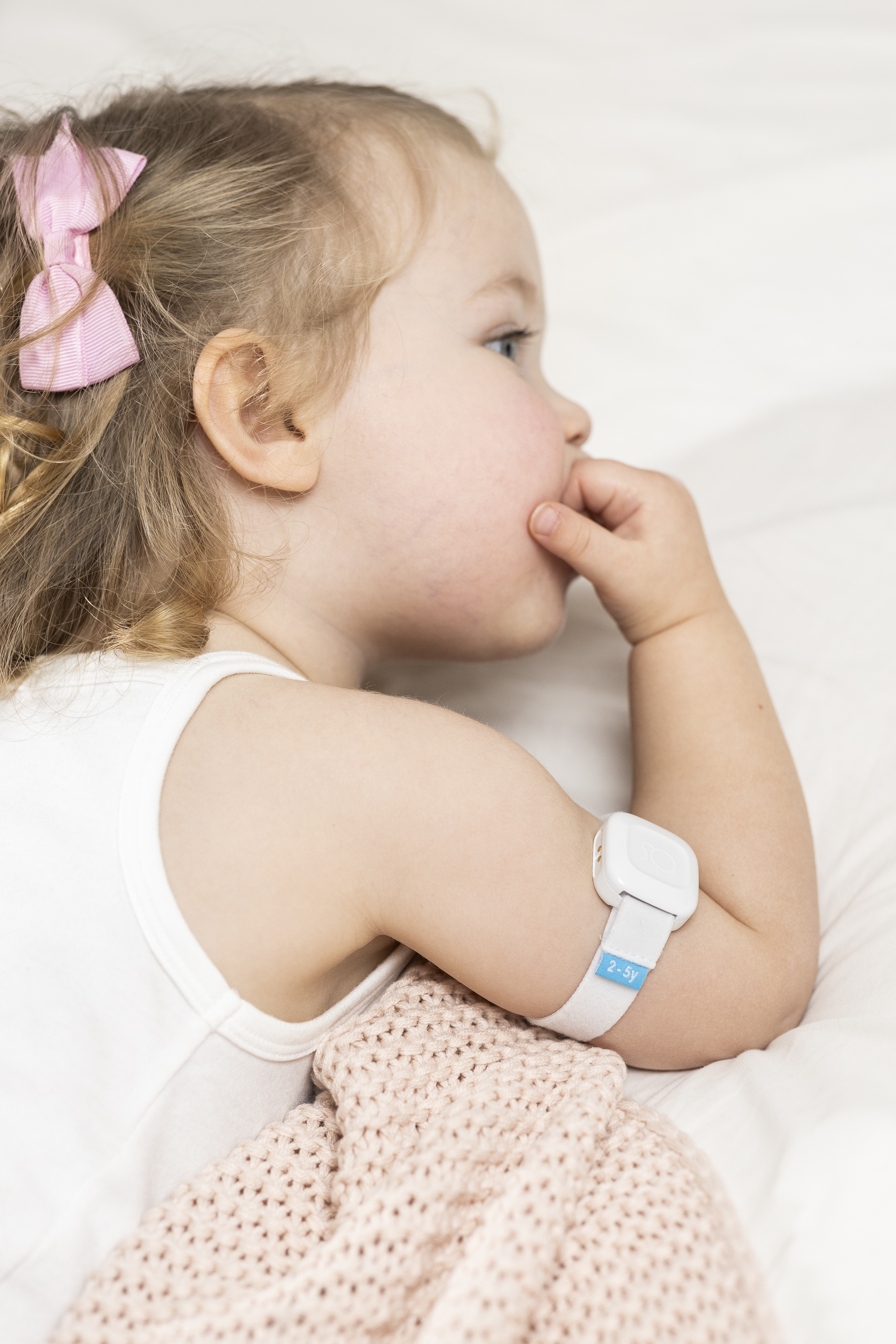
The Gabi Sensor and bracelet, worn on the upper arm
In this guide:
⚠️ You will need a 2.4 GHz Wi‑Fi network (5 GHz networks are not supported).
What's in the box
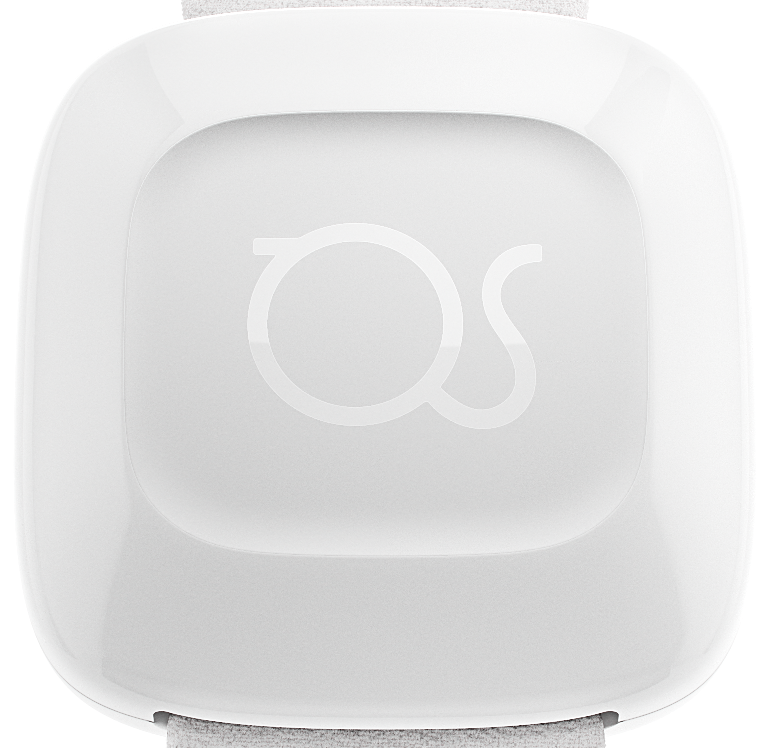
1. Gabi Sensor The pulse-oximetry sensor that clips into the bracelet. |
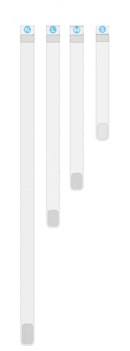
2. 4 bracelets, sizes S–XL Soft bracelets in four sizes so the sensor fits securely. |
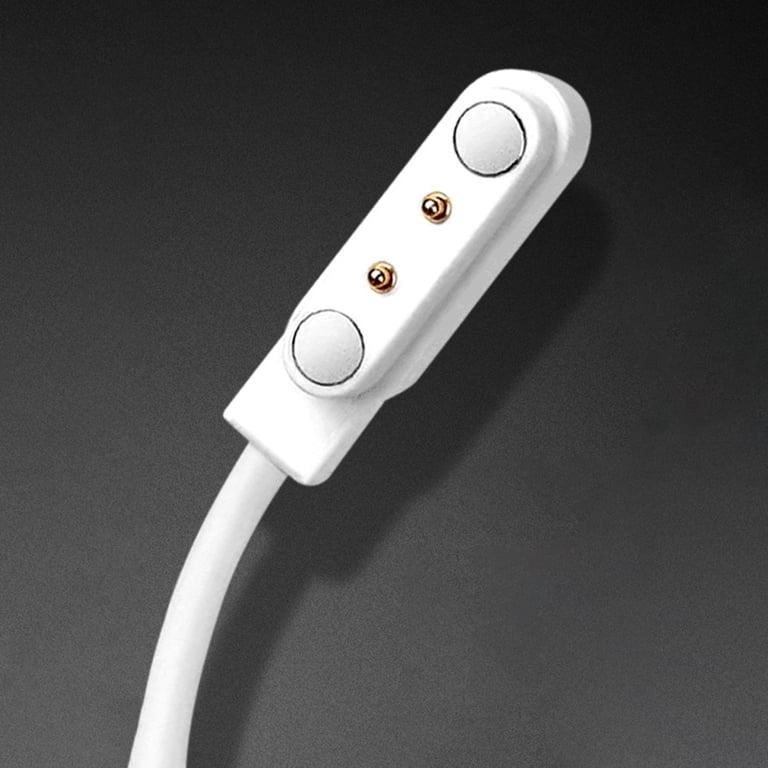
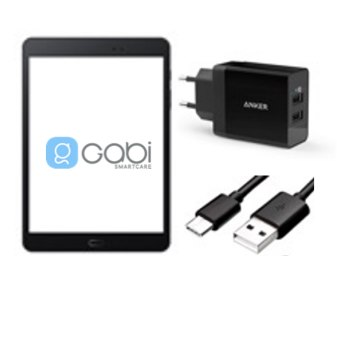
3. Power adapter & charging cable Charges the Gabi Sensor via its magnetic connector. |
4. Gabi Monitor The Gabi Tablet with the Gabi App installed, plus its adapter and micro‑USB cable. |
Before you begin
- Charge the Sensor and Tablet. About 30 minutes on the charger is enough for the sensor; give the tablet 30–60 minutes.
- Confirm your Wi‑Fi. You'll need a 2.4 GHz network — 5 GHz networks are not supported.
- Keep everything close. Keep the tablet within 23 feet of the sensor, in the same room, and plugged into power during use.
Choose the right bracelet size:
| Bracelet size | Upper arm circumference | Child weight |
|---|---|---|
| S | < 160 mm (< 6.3 in) | < 15 kg (< 33 lbs) |
| M | 150–200 mm (5.9–7.9 in) | 9–30 kg (20–66 lbs) |
| L | 190–260 mm (7.5–10.2 in) | 22–45 kg (49–99 lbs) |
| XL | > 250 mm (> 9.8 in) | > 40 kg (> 88 lbs) |
Measure upper arm circumference at its midpoint to choose the snuggest fit.
Set up your Gabi System, step by step
Step 1Attach the bracelet to the sensor
Hold the Gabi Sensor with the sensors facing up and the sizing label facing down, then gently attach the bracelet loops to the sensor's protrusions.
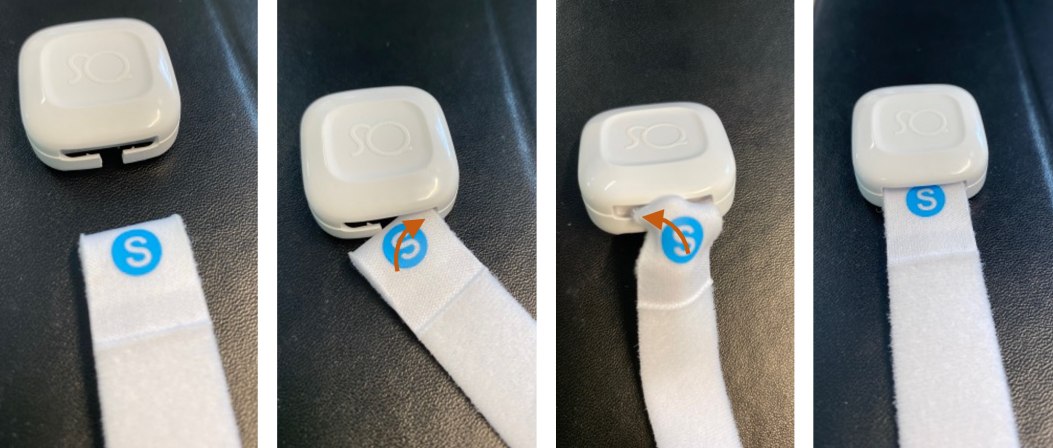
Left to right: unclipped bracelet → loop started → loop secured → bracelet attached
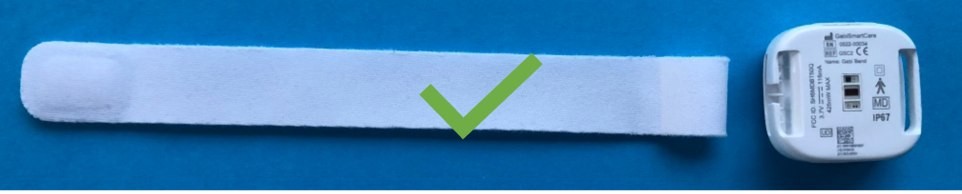
✓ Correct
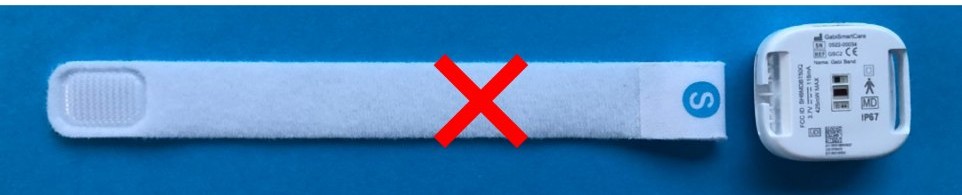
✗ Incorrect
Step 2Charge the sensor
Connect the charging cable to the adapter, attach the magnetic end to the sensor, and plug the adapter into a wall outlet.
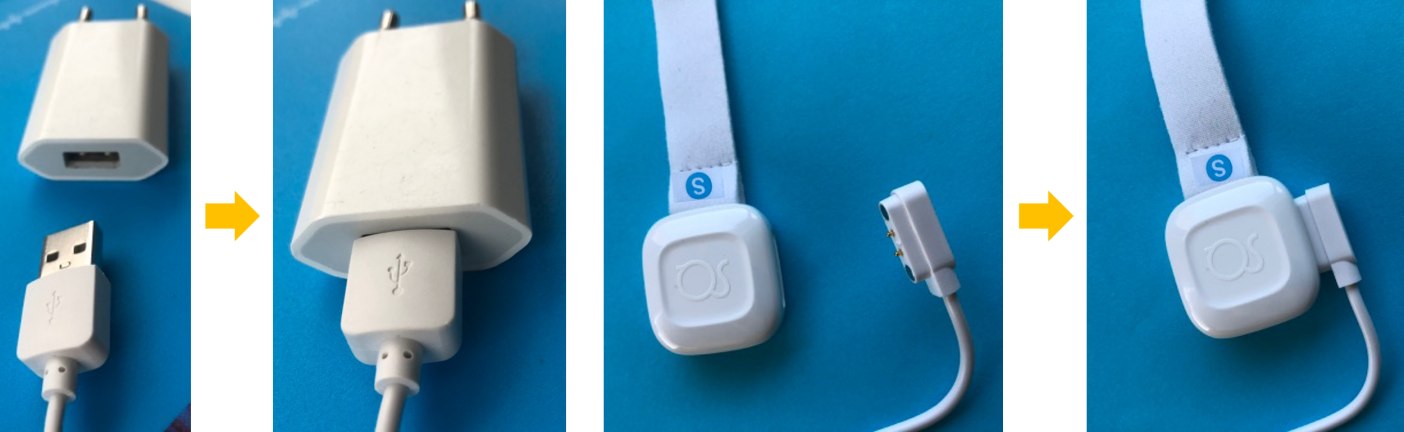
Adapter + cable → connect to adapter → attach magnetic end → sensor charging
⚠️ Blinking white means the sensor is charging. About 30 minutes is enough before first use — you don't need to wait for a solid white (100%) light, which takes longer.
Step 3Power the tablet
Connect the tablet to its power adapter using the micro‑USB cable, right side up, and plug it into an outlet.
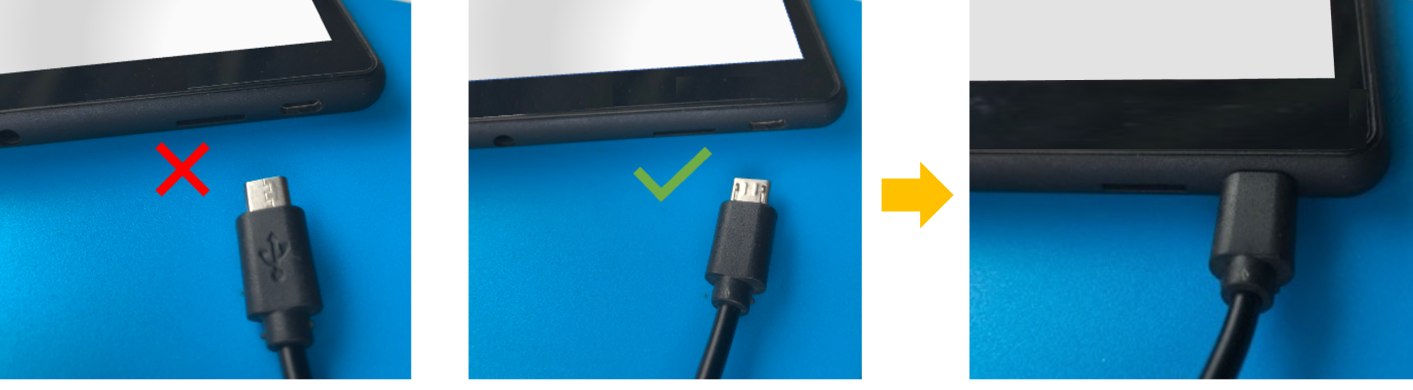
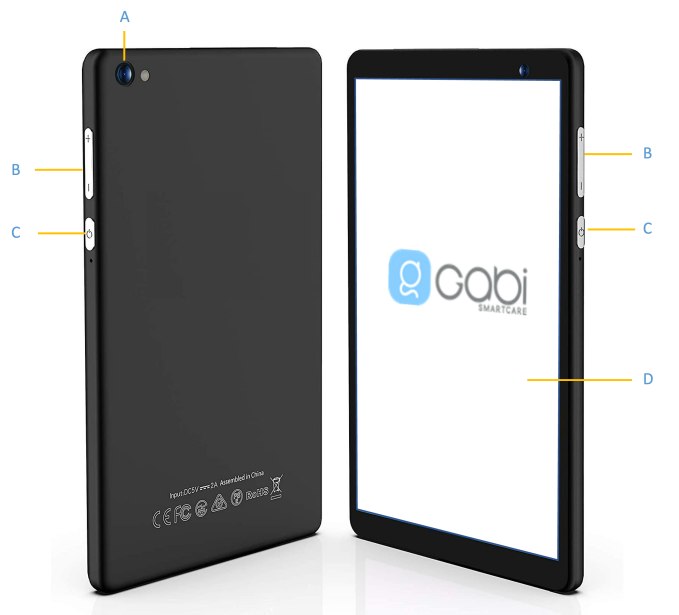 A Camera · B Volume buttons · C Power ON/OFF button · D Touch screen
Step 4Choose your language & connect to Wi‑Fi
Turn on the Gabi Tablet and open the Gabi App. A welcome screen appears — select your language and tap Start when you're ready to configure it.
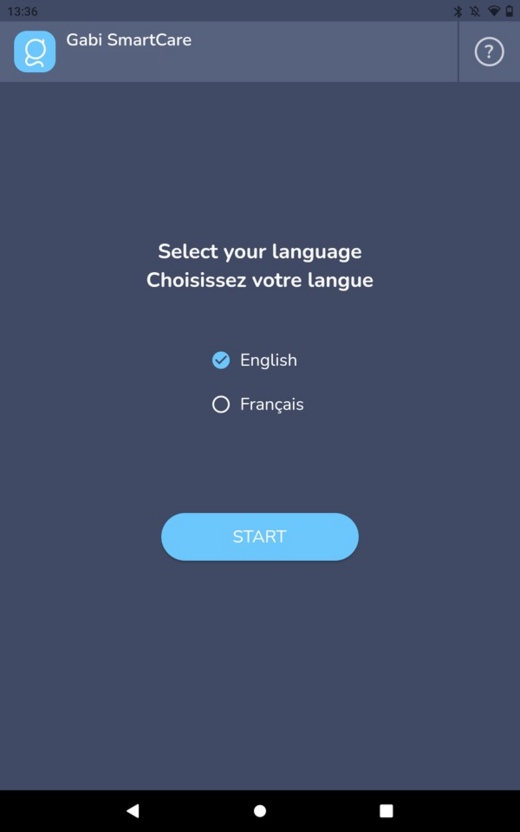
Select your language, then tap Start.
- Tap Start, then Wi‑Fi Settings.
- Select your 2.4 GHz network and enter your password.
- Tap the back arrow at the bottom of the screen to return to the app.
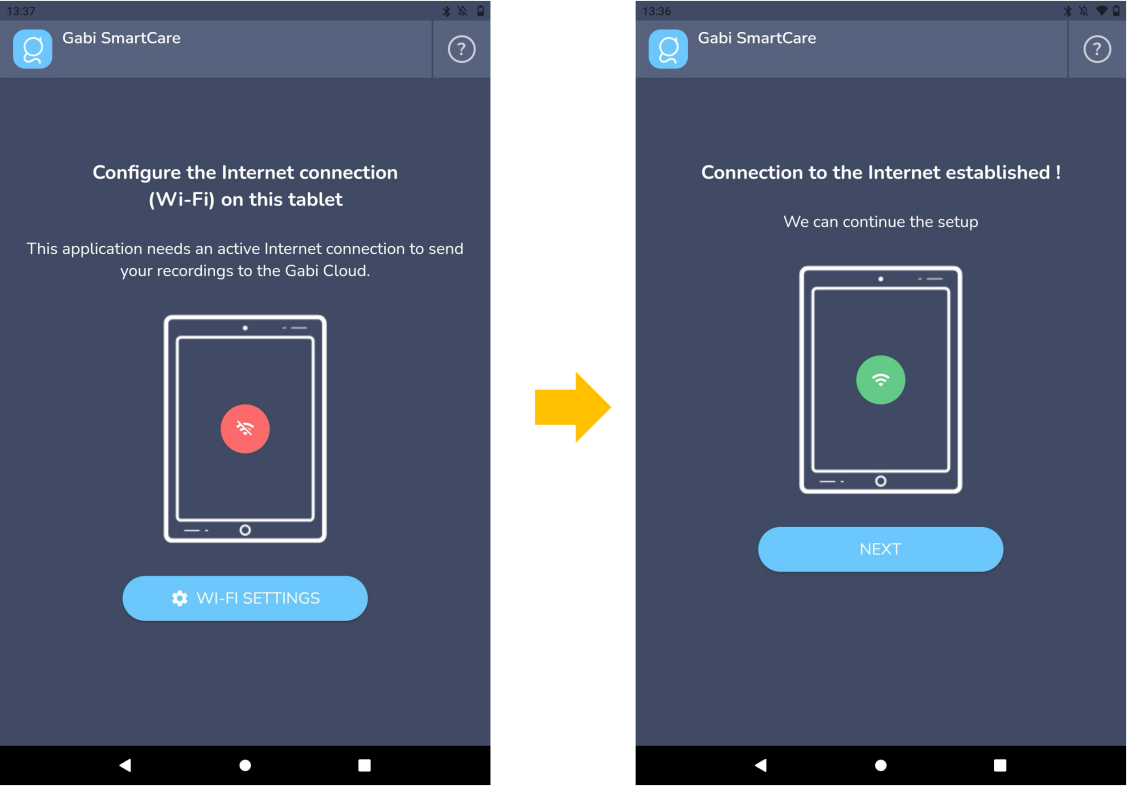
Configuring Wi‑Fi → connection established
Step 5Confirm date, time & security
The Gabi App checks the tablet's clock, then offers an optional lock screen to secure access to the tablet.
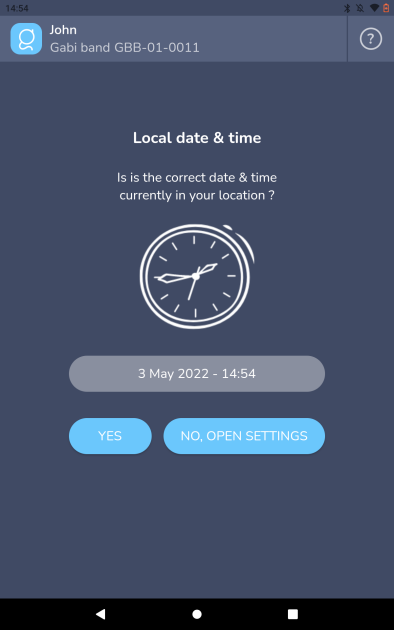
If the date and time are correct, tap Yes. If not, tap "No, open settings" to fix them, then return to the app.
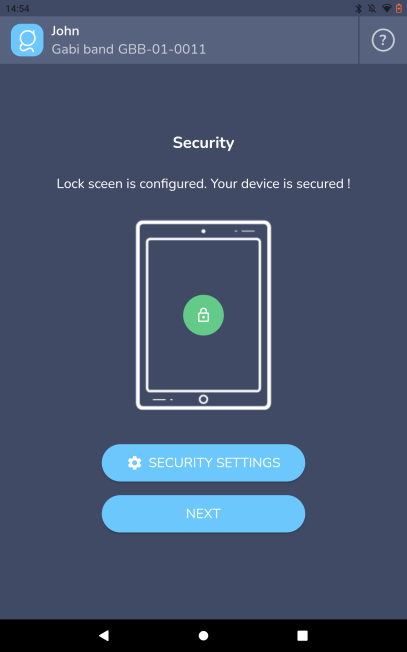
Optional: tap Security settings to add a PIN or pattern, then tap Next.
Step 6Pair the sensor
Plug the sensor into its magnetic charger — this puts it in pairing mode for 5 minutes. Tap Next on the tablet, then select your device ID from the list.
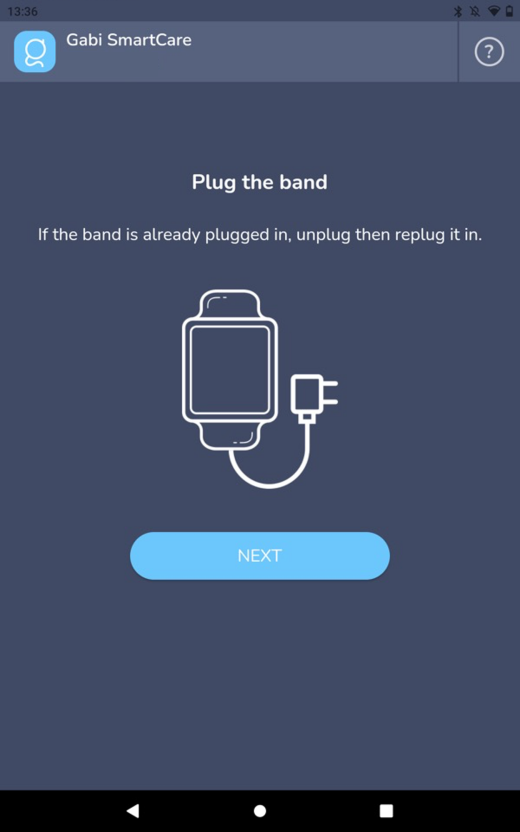
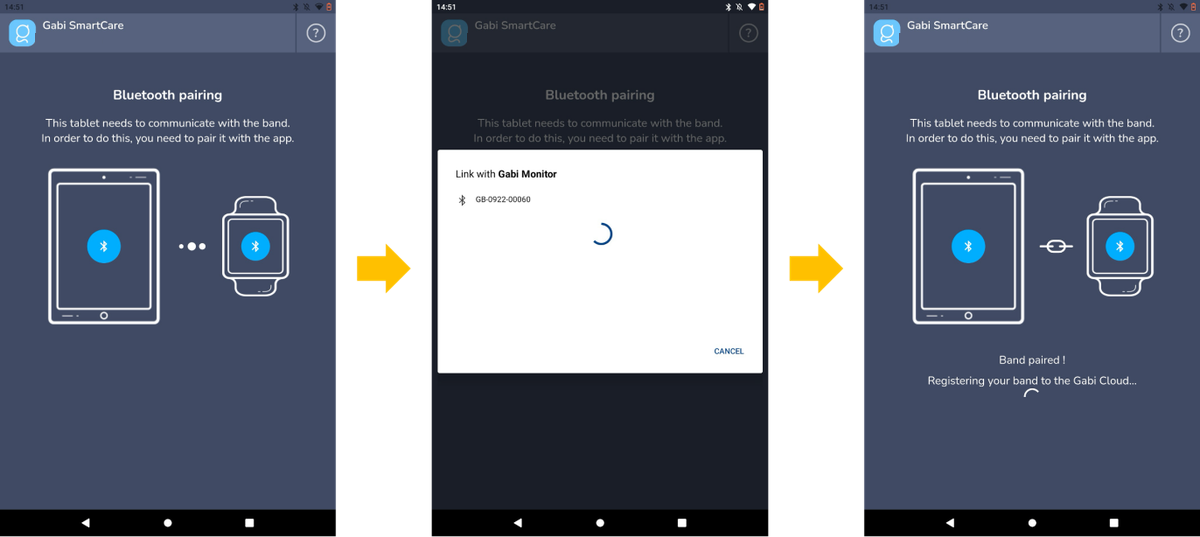
Searching for your sensor → linking → sensor paired
⚠️ Your sensor's ID looks like GB-XXXX-XXXXX and is only listed during the first 5 minutes after it's connected to power. If it doesn't appear, unplug the charger and plug it back in.
Step 7Link the patient account
Tap Next and scan the QR code sent by using the tablet camera, then confirm your child's first name.
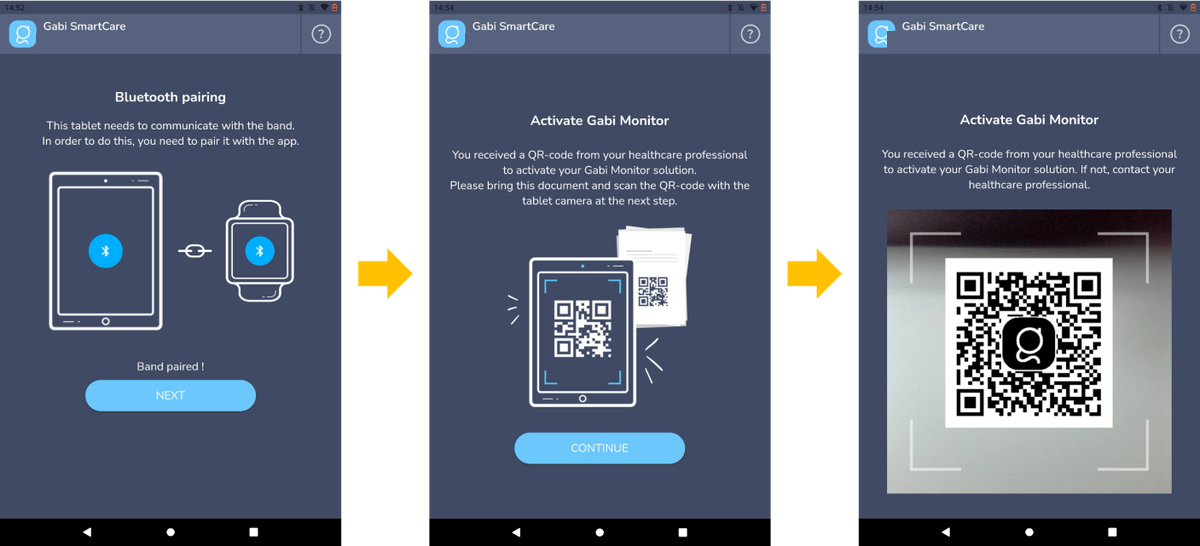
Ready to scan → scanning the QR code → account linked
⚠️ If the name shown isn't your child's, tap No and contact your physician or customer support before continuing.
Step 8Review bracelet placement & finish setup
The Gabi App walks through correct and incorrect ways to place the bracelet on your child's arm. Read the directions carefully, acknowledge them, then tap Done.
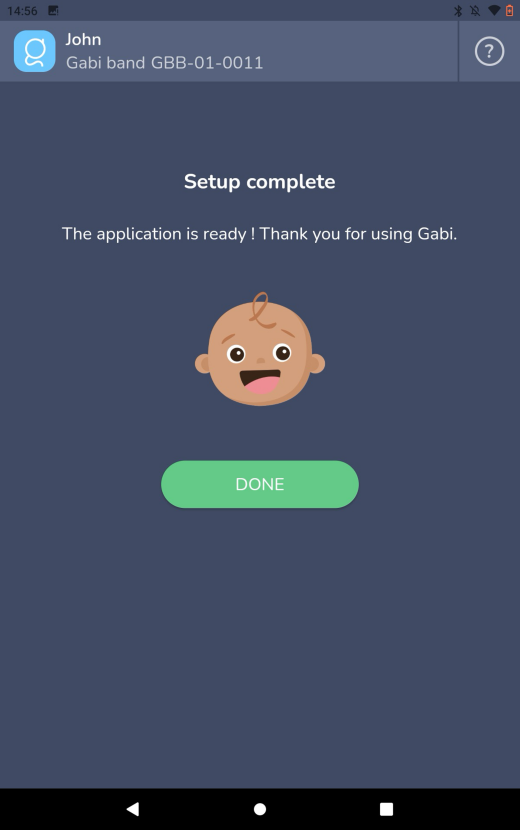
Setup complete — tap Done to start using the Gabi System.
Get to know the home screen
This is the screen you'll use every day. Keep the tablet plugged into power throughout the day and overnight while your child is being monitored.
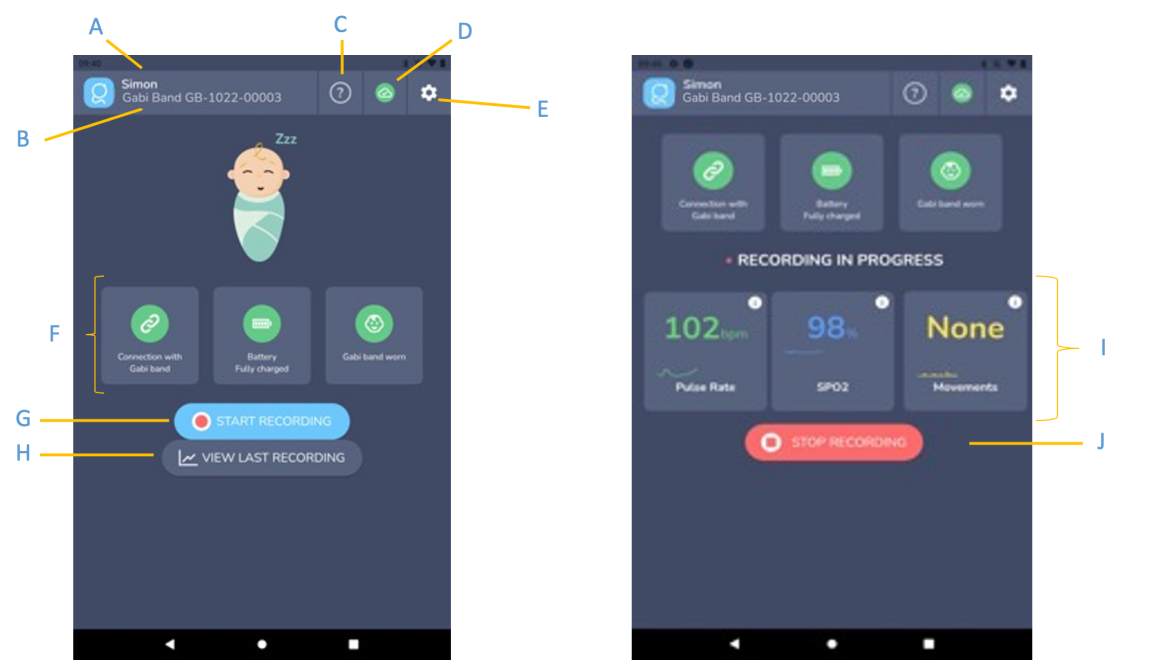
| Element | What it does | |
|---|---|---|
| A | Patient name | The child currently linked to this tablet. |
| B | Gabi Sensor ID | The device ID paired to this tablet. |
| C | Help | Opens in-app support. |
| D | Cloud sync | Shows the connection to the Gabi Cloud. |
| E | Settings | Tablet and app settings. |
| F | Status checklist | Sensor connection, battery, and whether it's worn — all green before you start. |
| G | Start Recording | Begins a new recording session. |
| H | View Last Recording | Opens your most recent session. |
| I | Live readings | Pulse rate, SpO2, and movement while recording. |
| J | Stop Recording | Ends the current recording session. |
Reading the sensor's light
The light on the Gabi Sensor tells you its status at a glance.
| Light | Meaning | What to do |
|---|---|---|
| ● White (blinking) | Charging | About 30 minutes is enough before use. |
| ● White (solid) | Fully charged | Ready for use. |
| ● Green | Ready | Sensor is properly attached and ready to record. |
| ● Purple (blinking) | Low battery (below 10%) | Charge immediately. |
| ● Yellow | Updating | Do not unplug or disconnect. |
| ● Blue | Pairing | Pairing is in progress. |
| ● Red | Error | Retry firmware update or contact support. |
Important medical notice
The Gabi System is a pulse oximetry data recorder, not a real-time clinical monitor. We do not provide alarms of any kind. Data should be evaluated by a healthcare professional. Do not alter treatments or medications without consulting your physician. If you have medical concerns or your child appears unwell, seek emergency medical attention immediately.
Need a hand with setup?
Our team is ready to help. Email us at support.sleeptest@hinlab.com.
Was this article helpful?
That’s Great!
Thank you for your feedback
Sorry! We couldn't be helpful
Thank you for your feedback
Feedback sent
We appreciate your effort and will try to fix the article